How to Make a Funeral Program Template in Microsoft Publisher: Step by Step

Microsoft Publisher is one of the best tools for creating funeral program templates because it’s designed for layout projects like brochures, newsletters, and booklets. Unlike Word, which is primarily text-based, Publisher gives you more control over placement, graphics, and design elements, making it easier to produce a professional-looking program.
Below is a complete step-by-step guide to help you design a reusable funeral program template in Publisher.
Step 1: Open Publisher and Select a Blank Document
-
Launch Microsoft Publisher.
-
From the New menu, choose Blank 8.5" x 11" Page (standard letter size).
-
Decide whether you want Portrait (vertical) or Landscape (horizontal). For bifold funeral programs, choose Landscape because it folds neatly into four panels.
Step 2: Set Up Page Layout
-
Go to Page Design → Margins and select Narrow or set custom margins (about 0.5 inches) to maximize space.
-
Use Guides to help align content. Under Page Design → Guides → Grid and Baseline Guides, add two vertical guides to divide the page into halves for a bifold program.
-
If you want a trifold design, divide the page into three equal columns.
Step 3: Plan the Content
Before designing, outline what you want to include:
-
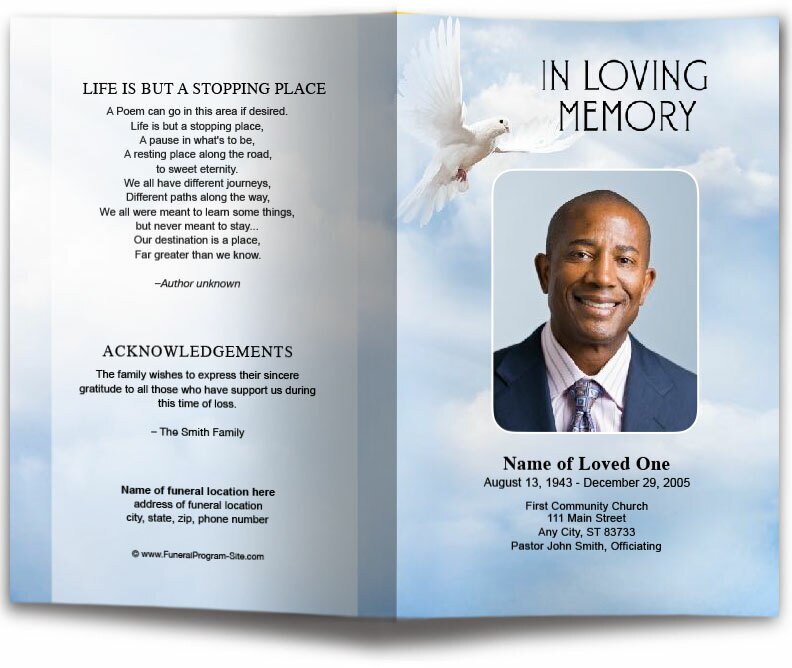
Front cover: name, photo, birth and death dates, title (e.g., Celebration of Life)
-
Back cover: acknowledgments, thank-you note, reception details, or a scripture verse
-
Inside left panel: order of service
-
Inside right panel: obituary, biography, or tributes
This will help you stay organized as you place content.
Step 4: Create the Front Cover
-
On the right panel (front cover), insert a text box for the title and loved one’s name.
-
Add a photo by going to Insert → Pictures → This Device. Resize and center it.
-
Use Publisher’s Background feature under Page Design to add subtle color or a gradient.
-
Optional: Insert a border, floral graphic, or clip art for decoration.
Step 5: Design the Back Cover
The left panel of the first page serves as the back cover. This is a good place for:
-
A thank-you or acknowledgment message
-
A favorite poem, hymn, or scripture
-
Service location or repast details
Add a decorative element, like a dove or candle image, to complete the design.
Step 6: Format the Inside Pages
-
Go to the second page (inside spread).
-
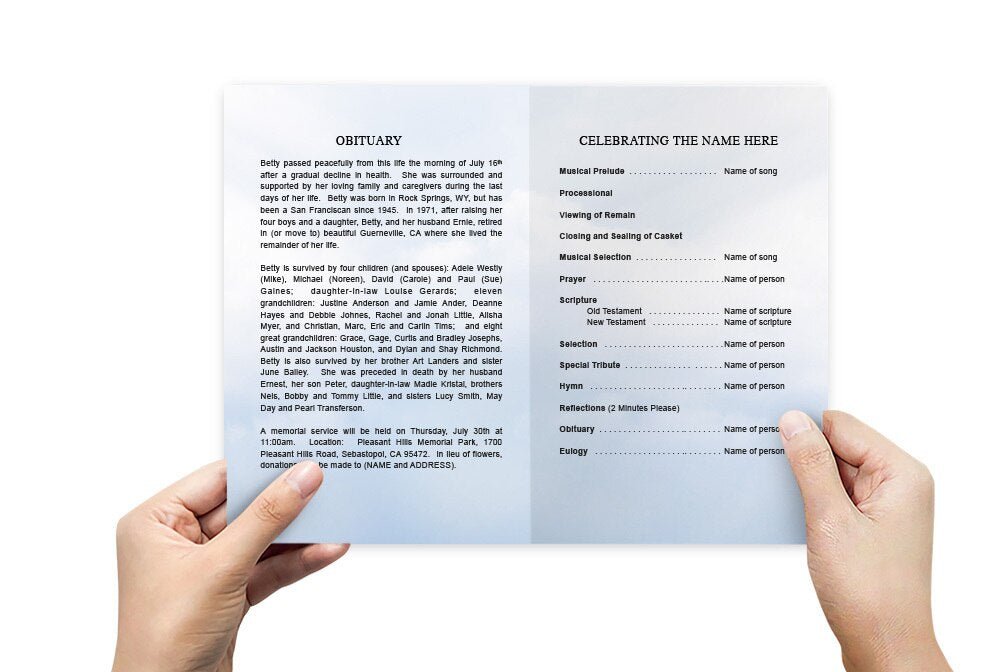
On the left inside panel, create a text box titled “Order of Service.” List items such as Prelude, Prayer, Scripture Reading, Hymns, Eulogy, and Benediction.
-
On the right inside panel, insert another text box for the obituary or life story. You can break it into paragraphs for readability.
-
Insert additional photos of your loved one in frames or sidebars for a personal touch.
Step 7: Customize Fonts and Colors
-
Use consistent fonts: one elegant script for titles and a clean serif or sans serif for body text.
-
Choose colors that reflect your loved one’s personality (soft pastels, classic black and white, or custom palettes).
-
Apply Publisher’s Themes for coordinated color and font combinations.
Step 8: Add Decorative Elements
Publisher makes it easy to include extras that enhance the design:
-
Shapes: Use rounded rectangles or banners for headings.
-
Borders: Apply page borders or frame photos.
-
Clip art or icons: Doves, flowers, or crosses can be added from Insert → Icons.
Step 9: Review and Proofread
Before finalizing, double-check:
-
Spelling of names and dates
-
Accuracy of service details
-
Alignment of photos and text
-
Print preview under File → Print to see how the folds will appear
Step 10: Save as a Template and Export
-
Go to File → Save As. Choose Publisher Template (.pub) so you can reuse the layout in the future.
-
Also save as PDF for professional printing. This ensures fonts and formatting stay intact.
Step 11: Print the Program
-
If printing at home, use heavier paper such as 32 lb. or cardstock.
-
For large quantities or a polished look, bring the PDF to a local print shop.
-
Fold carefully along the guides for a neat finish.
Final Thoughts
Microsoft Publisher is ideal for designing funeral program templates because it balances ease of use with professional layout options. By following these steps—setting up the document, planning content, designing each panel, and saving as a template—you’ll create a meaningful keepsake that can be customized for any service.
The most important part of your program isn’t the design itself but the love, memories, and details it represents. A well-crafted template ensures that your loved one’s story is honored beautifully and that the family has a lasting tribute to cherish.