How to Make a Funeral Program Template in Google Slides: A Step-by-Step Guide

google slides funeral program template

When planning a funeral or memorial service, families often look for meaningful ways to celebrate the life of a loved one. A funeral program serves as both a guide to the order of service and a keepsake for attendees. While professional templates and services are available, many families prefer to create their own program for a personal touch. One of the easiest, most accessible tools for this task is Google Slides.

Google Slides may be known for presentations, but its flexibility, cloud-based accessibility, and design features make it an excellent option for funeral program templates. With just a few steps, you can create a custom design, save it as a reusable template, and share it with others online.

This step-by-step guide will show you exactly how to make a funeral program template in Google Slides, from setup to printing.

Step 1: Plan the Program Before Opening Google Slides

Before you begin designing, take a few minutes to outline the structure of your funeral program. Doing this first saves time and prevents you from rearranging things later.

Typical funeral programs include:

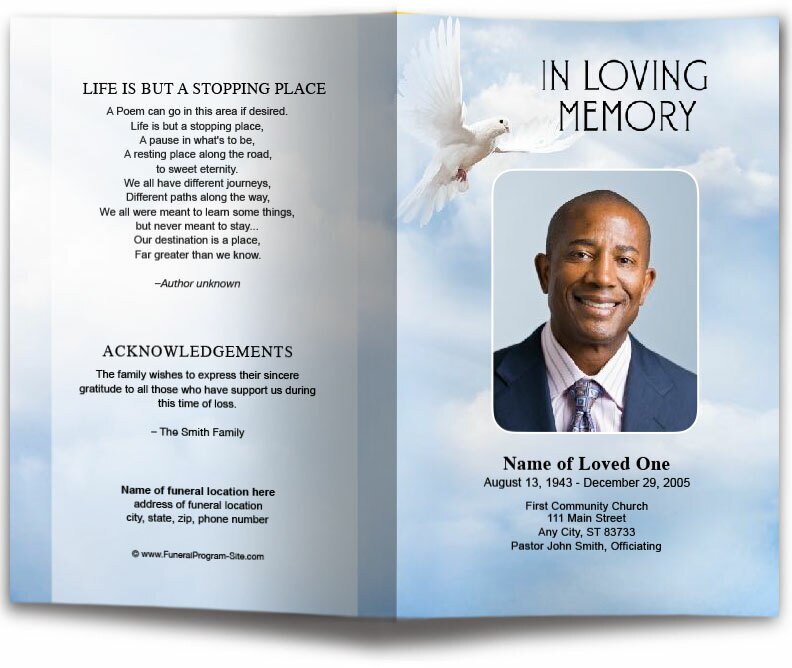
  • Front Cover: Title (e.g., In Loving Memory), the name of the deceased, dates of birth and passing, and a portrait photo.

  • Back Cover: Acknowledgments, thank-you note, or details about the burial/reception.

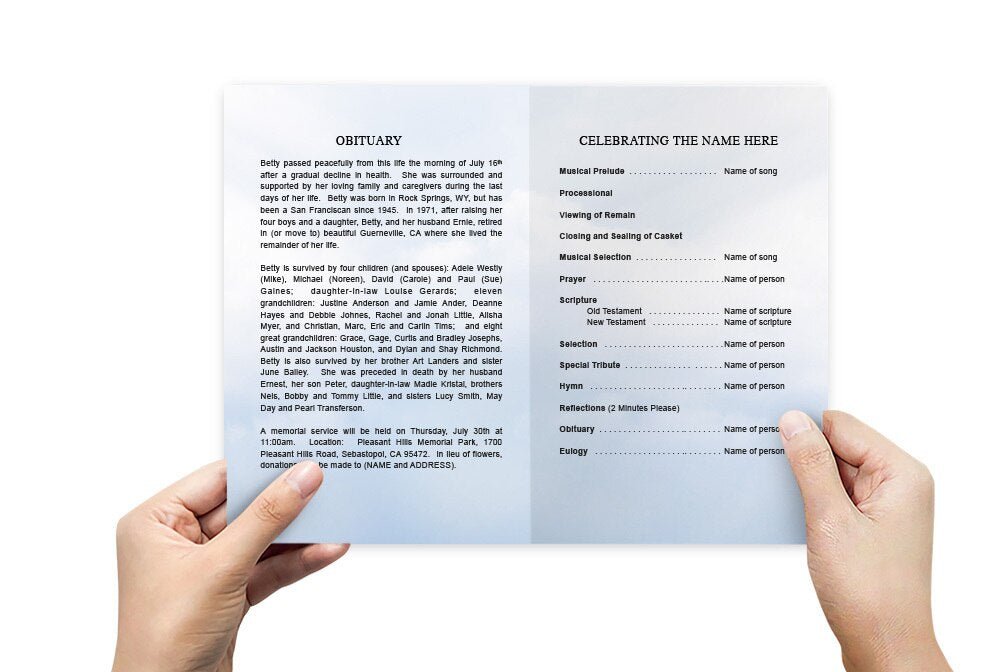
  • Inside Left Panel: The order of service (listing prayers, hymns, readings, tributes, and eulogy).

  • Inside Right Panel: Obituary, biography, or personal tributes.

Decide whether you want a bifold program (an 8.5” x 11” sheet folded in half, creating four panels) or a trifold program (six panels). Most families choose a bifold because it balances space and simplicity.

Step 2: Open Google Slides and Start a New File

  1. Go to Google Slides in your browser.

  2. Select Blank Presentation from the template chooser.

  3. Delete the default text boxes to start with a clean slate.

At this point, you have a plain white slide that you can customize for print rather than a presentation.

Step 3: Set Up the Page Size for Printing

Since you’ll be printing the funeral program, you need to change the default slide dimensions.

  1. Click File → Page Setup.

  2. In the pop-up menu, select Custom.

  3. For a bifold, enter 11 x 8.5 inches (landscape orientation).

    • This matches a standard letter sheet that folds neatly in half.

  4. For a trifold, set the dimensions to 11 x 8.5 inches but plan to divide the slide into three panels.

Click Apply, and your slide will now look more like a sheet of paper than a presentation slide.

Step 4: Add Guides for Panel Divisions

To help align content, add lines to mark folds:

  1. Go to Insert → Line and draw vertical lines.

  2. For a bifold, place one line at the halfway point (5.5 inches).

  3. For a trifold, place two lines at 3.67 inches and 7.34 inches.

These lines won’t print, but they guide where to place text and images so they don’t fall into the fold.

Step 5: Design the Front Cover

The right half of the first slide will serve as the front panel.

  1. Insert a text box for the title: “In Loving Memory of [Name].”

  2. Beneath the title, add the dates of birth and passing.

  3. Insert a photo of your loved one: Insert → Image → Upload from computer/Google Drive.

  4. Resize and position the photo in the center. Use Format Options → Drop Shadow to add depth.

  5. Add a soft background color or gradient using Background → Color.

Keep the design simple, focusing on the name and photo.

Step 6: Create the Back Cover

The left half of the first slide is the back panel. This is a good place for acknowledgments, thank-you messages, or a scripture verse.

  1. Insert a text box for the acknowledgment section (e.g., “The family wishes to thank you for your support”).

  2. Add funeral reception or burial details if needed.

  3. Decorate with a small image such as a dove, candle, or floral clipart (Google Slides offers free icons through Insert → Image → Search the web).

Step 7: Add the Inside Pages

On the second slide, create the inside spread of the program.

  • Left Column (Order of Service):

    1. Insert a text box and title it “Order of Service.”

    2. List items such as Prelude, Prayer, Hymn, Reading, Eulogy, and Benediction.

    3. Use bullet points for clarity.

  • Right Column (Obituary/Biography):

    1. Insert another text box and title it “Obituary” or “Life Story.”

    2. Write a short biography, including family details, career, achievements, and hobbies.

    3. Break text into paragraphs for readability.

    4. Insert small photos or quotes to add visual interest.

Step 8: Customize Fonts and Styles

Fonts set the tone of your program:

  • For titles: Choose an elegant script font (e.g., Great Vibes, Dancing Script, or Pacifico).

  • For body text: Use a clean, readable font (Arial, Lora, Open Sans, or Georgia).

  • Keep consistency: Limit yourself to two fonts—one decorative, one simple.

To apply, highlight the text and use the Font menu in the toolbar.

Step 9: Apply Colors and Themes

Colors should reflect the tone of the service. Soft, muted palettes work best—lavender, navy, beige, or soft greens.

  1. Select a text box or background.

  2. Click Fill Color to choose custom shades.

  3. Use the Theme Builder (under Slide → Edit Theme) to apply a consistent style across all pages.

Step 10: Add Borders, Shapes, and Decorations

Visual elements give your program a finished look:

  • Use Shapes → Rectangle with no fill and a border line to frame text or photos.

  • Insert Lines to separate sections.

  • Add small icons (cross, heart, or flower) using Insert → Image → Search the web.

Keep decorations subtle so the text remains the focus.

Step 11: Insert Additional Photos

Photos make the program personal and heartfelt.

  1. Use Insert → Image to add candid or family photos.

  2. Arrange them neatly in columns or create a small collage.

  3. Apply Crop → Shape to frame images in circles or rounded rectangles.

Step 12: Proofread and Review

Before saving, carefully review:

  • Names, dates, and service details.

  • Alignment of text boxes (don’t let words run into fold lines).

  • Font consistency and readability.

  • Photo clarity (use high-resolution images).

Use Present Mode to see how the design looks full screen.

Step 13: Save as a Template

To make your layout reusable:

  1. Rename your file something like Funeral Program Template.

  2. Store it in a dedicated Google Drive folder.

  3. When needed again, open the template and select File → Make a copy to create a new version without overwriting the original.

Step 14: Export for Printing

For professional results, always export as a PDF:

  1. Go to File → Download → PDF Document (.pdf).

  2. This ensures formatting and fonts stay intact, even when printing elsewhere.

  3. Share the PDF with family members, or upload it to a print shop.

Step 15: Print the Program

  • At home: Use quality paper (28–32 lb. or light cardstock). Print in color if possible. Fold carefully for a clean edge.

  • At a print shop: Send the PDF and specify double-sided printing. They can fold, trim, and finish the programs professionally.

Final Tips for a Meaningful Program

  • Keep designs uncluttered—white space helps readability.

  • Use high-quality photos for clarity.

  • Stick with two fonts and two to three colors.

  • Print one test copy before printing the full set.

  • Share a digital version with those unable to attend.

Final Thoughts

Google Slides is a free, flexible, and collaborative tool for creating funeral program templates. Its combination of text boxes, image support, and layout flexibility makes it as effective as paid design software. By following these steps—setting up your document, designing each panel, customizing fonts and colors, and saving as a reusable template—you can create a beautiful, heartfelt program that honors your loved one’s memory.

The best part is that once saved, the template can be reused for other family members, friends, or even as a service offered to others. This makes it not just a single-use design, but a meaningful tool for creating lasting tributes.

Back to blog

How To Save Time By Using Funeral Program Templates

Planning a funeral or memorial service can be overwhelming, especially when dealing with grief and time constraints. One of the most time-consuming aspects is creating a funeral program, which serves as both a schedule of the service and a keepsake for attendees. Instead of designing a program from scratch, using funeral program templates can save time, reduce stress, and ensure a professional-looking tribute.

One of the main advantages of using a funeral program template is that it eliminates the need for graphic design skills. Creating a funeral program from scratch requires knowledge of design software, formatting, and typography. A template provides a professional layout, so you do not have to worry about these technical aspects.

Templates also save hours of work. Manually designing a program can take several hours, especially if you are experimenting with fonts, images, and formatting. With a template, you can complete the program in minutes. In addition, templates ensure a polished and elegant look. They are created by professional designers, so the final product is balanced, visually appealing, and well-structured.

While funeral program templates provide a structured format, they are also easily customizable. You can change fonts and colors to match the personality of the deceased, insert meaningful quotes or scriptures, and add personal photos and tributes to make it unique. Once customized, templates can be downloaded and printed immediately, either at home, at a local print shop, or through an online printing service.

Using a template helps save time by providing a pre-formatted design, eliminating the need to worry about margins, spacing, or layout. It allows for easy customization, where you simply replace sample text with personal details. Once completed, the template can be printed immediately, ensuring quick turnaround. The structured layout also guarantees a polished and elegant appearance, preventing the stress of designing from scratch.

Are the templates compatible with both Mac and PC?

Yes, most funeral program templates are compatible with both Mac and PC, making them accessible regardless of the device you use. If you are using a Mac, programs like Pages, Microsoft Word for MAC or PDF viewer can edit templates specific to those software. For PC users, Microsoft Word and Publisher are the strong choice. Google Docs is free and requires no software needed and can be edited on both platforms online with simply an internet connection.

Shop Funeral Program Templates
  • How many pages or fold styles are available (bifold, trifold, etc.)?

    Funeral program templates are available in various page layouts and fold styles to suit different preferences and levels of detail. The most common formats include bifold (single fold, creating four pages) and trifold (two folds, creating six panels), which are ideal for structured and organized content. Other options include gatefold, graduated (step) fold, and multi-page booklets, allowing for additional space to include photos, tributes, and extended obituaries.

  • How do I choose a design that reflects my loved one's personality?

    To choose a funeral program design that reflects your loved one’s personality, consider their style, interests, and values. A nature-inspired or floral theme may suit someone who loved the outdoors, while a classic, minimalist design might reflect a refined and elegant personality. Incorporating favorite colors, meaningful symbols, and personal photos ensures the program feels unique and truly honors their memory.

  • What color schemes are appropriate for a funeral program?

    Traditional black, white, and gray color schemes create a classic and elegant look for a funeral program. Soft pastels like lavender, light blue, or pale pink evoke peace and serenity, while deep tones such as navy blue, burgundy, or forest green add warmth and dignity. For a more uplifting tribute, earthy hues or warm golds can symbolize love, remembrance, and a celebration of life.

  • Is customer support available for template customization?

    Yes, we always offer customer support to assist with funeral program template customization. Support options may include live chat, email assistance, or step-by-step guides to help with editing, formatting, and printing. Some services also provide professional customization for those who need additional help personalizing their template.

frequently asked questions about funeral program templates

Funeral Program Templates FAQs

What is a funeral program template, and how is it used?

A funeral program template is a pre-designed document that provides a structured layout for creating a funeral or memorial service program. It includes placeholders for essential elements such as the order of service, obituary, hymns, readings, tributes, and photos. Templates are designed to be easily customizable, allowing families to personalize the content to reflect the personality, values, and life of their loved one. By using a funeral program template, families can save time and effort while ensuring the final program is professional and meaningful. These templates can be printed for distribution at the service or shared digitally with friends and family.

What file formats are available for funeral program templates?

Most templates are available in editable formats such as Microsoft Word (.docx), Publisher (.pub), Apple Pages, Google Docs and PDF for convenience and flexibility.

Do I need design experience to use funeral program templates?

No, our templates are user-friendly and designed for anyone to use, even without prior design experience. They come with easy-to-follow instructions.

Can I print the funeral program templates at home?

Yes, templates can be printed at home or through a professional printing service. They are designed to be compatible with standard paper sizes and printing options.

What software do I need to customize a funeral program template?

Funeral program templates are typically designed to be edited using popular software programs that most people are familiar with. Common software options include Microsoft Word, Google Docs, Adobe InDesign, and Canva. Microsoft Word and Google Docs are ideal for simple edits and basic design adjustments, while Adobe InDesign is better suited for more advanced customization and design flexibility. Canva is a user-friendly, web-based tool that offers drag-and-drop features, making it accessible even to those with minimal design experience. The choice of software depends on your comfort level, the complexity of the template, and the desired customization.

Can I include photos and personalized messages in a funeral program template?

Yes, most funeral program templates are designed to be fully customizable, allowing you to add personal touches such as photos, quotes, poems, and personalized messages. You can replace placeholder images with your own photos of the deceased and adjust the text to include their name, dates, a brief biography, and tributes from family and friends. Many templates also offer dedicated sections for adding quotes, scriptures, or poems that hold special meaning. By incorporating these elements, you can create a unique and heartfelt tribute that reflects the life and legacy of your loved one.

Where can I find funeral program templates, and are they free?

Funeral program templates can be found on various websites, including specialized funeral stationery sites like The Funeral Program Site, as well as general template providers such as Etsy, Canva, and Template.net. Some templates are available for free, especially simple or basic designs, while more elaborate and professionally crafted templates may require a small fee. The paid templates often come with additional features such as multiple layout options, advanced customization capabilities, and high-quality design elements. It’s important to choose a template that best fits your needs, preferences, and the tone of the service.

How do I print funeral program templates, and what type of paper should I use?

Once you have customized your funeral program template, you can print it at home using a high-quality printer and good-quality paper or cardstock. For a more professional finish, consider using a local print shop or an online printing service. The choice of paper is important for creating a polished and professional-looking program. Matte or semi-gloss cardstock is a popular choice as it is sturdy and provides a refined appearance. The thickness of the paper should be between 80 lb to 100 lb for durability and to prevent bleed-through. If you are using a bifold or trifold layout, ensure the paper is easy to fold without cracking.

How To Use Funeral Program Templates: A Step-by-Step Guide

Home 4-Sided Graduated Funeral Program Template.

Funeral program templates are valuable tools that help families create meaningful, personalized programs for a funeral or memorial service. These templates provide a structured format, making it easy to include essential information like the order of service, obituary, tributes, and photos. By using a template, you can save time and effort while ensuring that the program looks polished and professional. Whether you are creating a simple single-page program or a detailed multipage booklet, funeral program templates offer flexibility, convenience, and a way to honor your loved one's memory. This guide will walk you through the steps of using a funeral program template, from selecting the right template to customizing and printing it.

Step 1: Choose the Right Funeral Program Template
The first step in using a funeral program template is to choose one that suits the tone, style, and theme of the service. There are several types of templates available, including single-page, bifold, trifold, and multipage layouts. When selecting a template, consider the following factors:

Format: Determine how much information you want to include. A bifold template is ideal for a simple service, while a multipage template is better for including more content, such as a detailed life story, multiple photos, and extended tributes.
Design Style: Look for a design that reflects the personality and preferences of the deceased. Templates range from traditional and religious to modern and minimalist styles. Consider color schemes, fonts, and imagery that resonate with the individual and the tone of the service.

Ease of Customization: Ensure the template is easy to edit and customize using software you are familiar with, such as Microsoft Word, Google Docs, or Adobe InDesign.

Many websites, such as The Funeral Program Site, offer a wide range of downloadable funeral program templates that are ready to use and customizable to fit your needs.

Step 2: Download and Open the Template
Once you have selected a template, download it to your computer. Most templates are available in formats compatible with popular software programs like Microsoft Word, Google Docs, or Adobe InDesign. Here’s how to open the template in each program:

Microsoft Word: After downloading the template, locate the file on your computer and double-click it to open it in Word. If you have multiple versions of Word installed, make sure you use the most recent version to ensure full compatibility.
Google Docs: To use a template in Google Docs, upload the file to your Google Drive and then open it in Google Docs. You may need to adjust some formatting after importing the template.

Adobe InDesign: Open Adobe InDesign and select "File" > "Open" to open the template file. Adobe InDesign is ideal for more advanced users who want greater control over design elements.

Step 3: Customize the Template
Customization is the most important part of using a funeral program template. This is where you personalize the program to reflect the life and memory of the deceased. Here are the key elements to customize:

Cover Page: Replace the placeholder text with the name of the deceased, their birth and death dates, and a meaningful quote or scripture if desired. Add a high-quality photo of the deceased to the cover page to create a personal connection for attendees.

Order of Service: Edit this section to reflect the specific events planned for the service, such as hymns, prayers, readings, eulogies, and any special music or tributes. Use bullet points or numbered lists for clarity and easy reading.

Obituary or Life Story: Include a brief biography or obituary that highlights important aspects of the deceased's life, such as their achievements, family, career, and personal interests. This section provides attendees with a deeper understanding of the person being remembered.

Photos and Tributes: Replace any placeholder images with photos of the deceased that capture meaningful moments in their life. Add captions to provide context. You can also include written tributes from family members, friends, or colleagues to add a personal touch.

Acknowledgments and Thank You Notes: Use this section to express gratitude to those who have offered support during the difficult time. Mention individuals or organizations that provided help, flowers, or contributions to the service.

Design and Layout Adjustments: Depending on the software you're using, you can adjust the layout, fonts, colors, and other design elements to suit your preferences. Make sure that the text is clear and easy to read, and that the overall design is balanced and aesthetically pleasing.

Step 4: Review and Proofread
Before finalizing the program, it is crucial to review and proofread all the content to ensure that there are no errors or omissions. Here are some tips for effective proofreading:

Check for Spelling and Grammar Errors: Carefully read through each section to catch any spelling or grammar mistakes.

Verify Dates and Names: Double-check that all names, dates, and details are accurate and spelled correctly.

Ensure Consistent Formatting: Make sure that fonts, font sizes, and formatting styles are consistent throughout the program. This will give the program a polished and professional appearance.

Get a Second Opinion: Ask a family member or friend to review the program for any errors or suggestions. A fresh set of eyes can often catch mistakes that you may have missed.

Step 5: Print or Share the Funeral Program
After customizing and reviewing the funeral program template, the next step is to print or share it. Here are some options:

Print at Home: If you have a high-quality printer, you can print the programs at home using good-quality paper or cardstock. This option is convenient and allows for quick adjustments if needed.

Professional Printing: For a more polished look, consider using a local print shop or an online printing service. They can provide options for different paper types, finishes (such as matte or gloss), and binding.

Digital Distribution: For those who cannot attend the service in person, consider sharing a digital version of the program via email or social media. You can also host the digital program on a dedicated memorial website, allowing friends and family to access it anytime.


Tips for Using Funeral Program Templates Effectively

Start Early: Begin working on the funeral program as soon as possible to give yourself enough time to customize, review, and make any necessary changes.

Keep It Simple: A simple design with clear text and minimal graphics is often the most effective and respectful choice. Avoid cluttering the program with too much information or overly elaborate designs.

Involve Family Members: Involve close family members in the customization process to ensure that the program reflects the collective memories and sentiments of those who knew the deceased best.

Focus on Quality: Use high-quality images and paper to ensure that the final program is a fitting tribute that attendees will want to keep as a memento.

Have a Backup Plan: If you are printing the programs yourself, print a few extra copies to account for any unexpected attendees or printing errors.

Conclusion: A Thoughtful and Practical Way to Honor a Loved One

Using a funeral program template is a thoughtful and practical way to create a meaningful tribute for a loved one. With the convenience and flexibility of templates, families can easily customize the program to reflect the deceased's personality, life, and legacy. By following these steps and using a user-friendly program like Microsoft Word, Google Docs, or Adobe InDesign, Apple Pages, you can create a beautiful, professional-looking funeral program that serves as a cherished keepsake for all who attend.

What are the most popular funeral program templates

The most popular funeral program templates include bifold designs, which offer a classic four-page layout that is easy to read and customize. Trifold templates are also widely used, providing six panels for additional space to include photos, tributes, and service details. For those needing more room, graduated (step) fold templates and multi-page booklets are ideal, allowing for a more detailed and visually appealing presentation of a loved one’s life.

Shop Funeral Program Templates

Funeral Program Templates Featured Video